

Direct connections
Learn about connecting directly to your Prisma Postgres database via direct TCP
Overview
Prisma Postgres supports both direct and pooled TCP connections, whether you connect to it via Prisma ORM or any other ORM, database library / tool of your choice. This page covers the direct, non-pooled connection string. For pooled TCP connections, see Connection pooling.
How to connect to Prisma Postgres via direct TCP
In order to get a direct connection string, you need to:
- Open a project in your Prisma Console account (or create a new one)
- Navigate to your active Prisma Postgres instance.
- Click the Connect to your database button in your dashboard.
- Click the Generate new connection string button.
- Copy the direct connection string that is generated below.
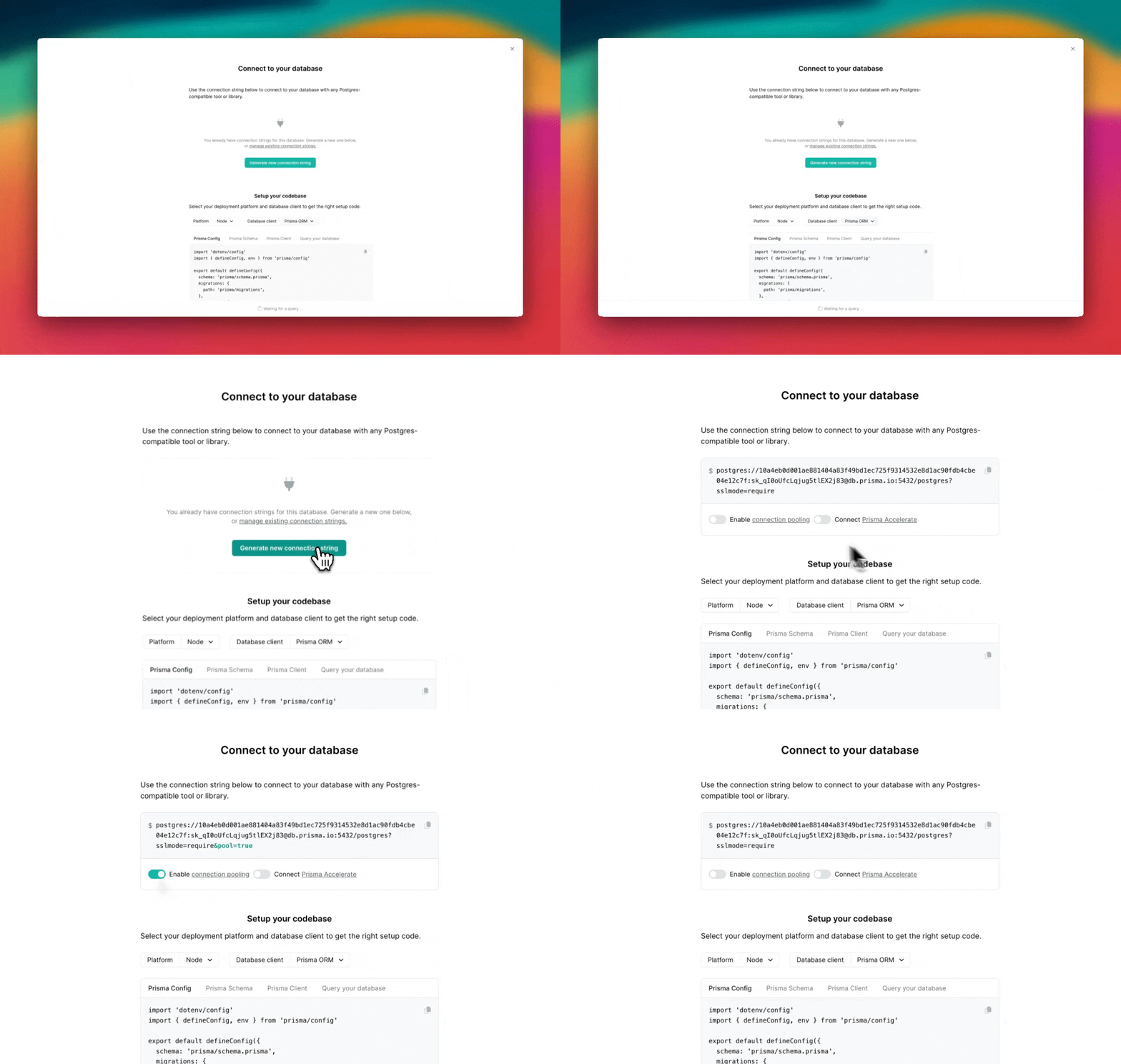
Connection string
Format
When you connect to Prisma Postgres via direct TCP, your connection string looks as follows:
DATABASE_URL="postgres://USER:PASSWORD@HOST:PORT/DATABASE_NAME?sslmode=require"This is built up from the following parts:
- User: The name of your database user
- Password: The password for your database user
- Host: The IP or domain name of the machine where your database server is running
- Port: The port on which your database server is running
- Database name: The name of the database you want to use
The USER and PASSWORD values are provided when you generate credentials for your Prisma Postgres instance in the Prisma Console. Here is an example with sample values:
DATABASE_URL="postgres://2f9881cc7eef46f094ac913df34c1fb441502fe66cbe28cc48998d4e6b20336b:sk_QZ3u8fMPFfBzOID4ol-mV@db.prisma.io:5432/?sslmode=require"SSL mode
SSL mode is required when connecting to Prisma Postgres via direct TCP, so you need to append sslmode=require to your TCP connection string.
Billing
When using direct TCP to connect to a Prisma Postgres instance, every request is counted as a billable operation. Learn more on our pricing page.
Temporary limitations
Closing idle connections
Prisma Postgres closes idle connections after an extended period of time. If that happens in your application, you can re-open a new connection. (Most database clients re-connect automatically.)
Connection limit
| Free | Starter | Pro | Business | |
|---|---|---|---|---|
| Connection limit | Max 10 | Max 10 | Max 50 | Max 100 |
Query and transaction timeouts
| Free | Starter | Pro | Business | |
|---|---|---|---|---|
| Query timeout | Up to 10 seconds | Up to 10 seconds | Up to 10 seconds | Up to 10 seconds |
| Interactive transactions timeout | Up to 15 seconds | Up to 15 seconds | Up to 15 seconds | Up to 15 seconds |
Limited user permissions
User permissions are limited to read, write and schema changes. It is not possible to create separate databases, manage users and roles, or perform other administrative actions.
TCP tunnel (deprecated)
The TCP tunnel feature has been deprecated in favor of direct connections. Please use direct connections for all new integrations and migrate existing implementations.
Use your direct TCP connection string with your preferred PostgreSQL client or tooling. Common options include:
psql, the PostgreSQL command-line client.- Prisma Studio for browsing and editing application data.
- GUI database editors such as TablePlus, DataGrip, DBeaver, and Postico.
For step-by-step examples of connecting with database editors, see Viewing data in Prisma Postgres.